Call of Duty Mobile on PC: The Ultimate 2026 Guide to Emulators and Setup
Call of Duty Mobile PC gaming in 2026 thrives thanks to top emulators, offering superior graphics and controls for an immersive experience.
The enduring appeal of Call of Duty Mobile has transcended its mobile origins, with a significant portion of its massive player base seeking the immersive experience of a larger screen. Since its initial launch, the game has amassed a dedicated following drawn to its fast-paced multiplayer action, featuring classic modes like Team Deathmatch, Domination, and Search and Destroy across diverse maps, as well as its expansive Battle Royale mode supporting up to 100 players. While developed primarily for Android and iOS, the demand to play this title on a personal computer has remained consistently high into 2026, driven by the desire for superior graphical fidelity, precise mouse-and-keyboard controls, and the comfort of a desktop setup.
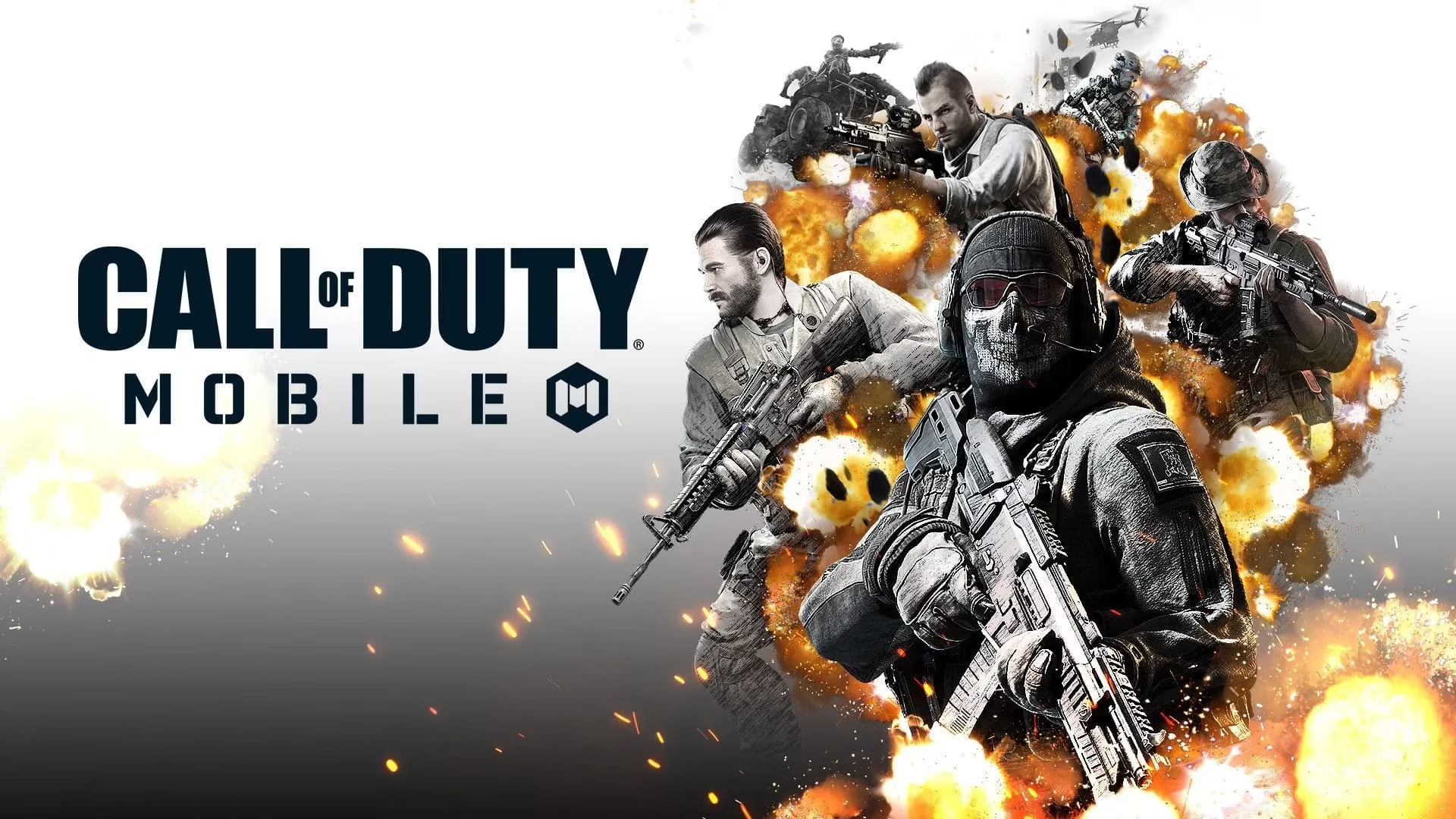
The Emulator Gateway: Your Ticket to PC Gameplay
Playing Call of Duty Mobile on a PC is exclusively facilitated through Android emulation software, as Activision has not released a native PC client. These programs create a virtual Android environment on your Windows or macOS system, allowing you to install and run the mobile application seamlessly. The choice of emulator is critical, impacting performance, compatibility, and the overall gaming experience. As of 2026, the landscape has solidified around a few standout options known for their optimization with this specific title.
Top Recommended Emulators for 2026
| Emulator | Primary Developer | Key Advantage for COD: Mobile | Best Suited For |
|---|---|---|---|
| Gameloop | Tencent | Officially recognized & highly optimized | Most users seeking stability & performance |
| BlueStacks 5 | BlueStacks Inc. | Feature-rich with excellent keymapping tools | Users wanting extensive customization |
| LDPlayer | XuanZhi International | Lightweight and efficient | Gamers with mid-range or older PC hardware |
Step-by-Step Setup with Gameloop (The Official Choice)
Gameloop, developed by Tencent, continues to be the most recommended emulator for Call of Duty Mobile due to its official backing and consistent optimization updates. Follow this guide for a smooth installation:
-
Download: Navigate to the official Gameloop website using your preferred browser and download the latest 2026 installer.
-
Install: Run the installer and follow the on-screen prompts to set up Gameloop on your PC.
-
Search & Install: Launch the Gameloop application. Use its built-in app store or search bar to find "Call of Duty: Mobile."
-
Download the Game: Click the install button. Gameloop will handle downloading and installing the game files directly.
-
Launch and Play: Once installed, find the COD Mobile icon in your Gameloop library and click to start. The emulator is pre-configured with sensible control schemes for mouse and keyboard.
Alternative Setup: BlueStacks for Customization Enthusiasts
For players who prioritize deep control customization or have specific performance needs, BlueStacks 5 remains a powerhouse. Its "Keymapping" tool is exceptionally granular. Here’s how to get started:
-
Step 1: Visit the official BlueStacks website and download the latest version of BlueStacks 5.
-
Step 2: Install the client, ensuring you meet the system requirements for optimal performance.
-
Step 3: Open BlueStacks and access the Google Play Store. Log in with your Google account.
-
Step 4: Search for "Call of Duty: Mobile" and install it as you would on any Android device.
-
Step 5: After installation, launch the game from the BlueStacks home screen. Immediately access the "Keymapping" panel (usually via a sidebar icon) to tailor every button, swipe, and action to your preferred keyboard keys and mouse actions.
Optimizing Your Experience: Controls, Settings, and Performance
Simply running the game is only the first step. To truly compete and enjoy the visual spectacle, optimization is key.
🎮 Control Schemes:
-
Mouse & Keyboard: Both emulators offer default keymaps. It is highly advised to spend time customizing them to match your muscle memory from other PC shooters. Adjust sensitivity for aiming and camera control until it feels natural.
-
Game Controller Support: If you prefer a console-like experience, both Gameloop and BlueStacks seamlessly detect most modern USB or Bluetooth controllers. Simply plug in your controller, and the emulator will often apply a pre-set configuration, which you can then fine-tune.
⚙️ In-Game & Emulator Settings:
-
Graphics: Within COD Mobile's settings, set the graphics quality and frame rate to match your PC's capability. For most systems, running at High frame rate with Medium or Low graphics can provide the best balance of smooth gameplay and visual clarity.
-
Emulator Allocation: In your emulator's settings (often in the "Engine" section), you can allocate more CPU cores and RAM. For a smooth experience in 2026, allocating 2-4 CPU cores and 4GB of RAM is a good starting point for modern systems.
-
VT (Virtualization Technology): Enable VT in your PC's BIOS/UEFI settings. This is a critical step that significantly boosts emulator performance and stability.
The Verdict for 2026: Is It Worth It? 😊
Absolutely. Playing Call of Duty Mobile on PC via a modern emulator in 2026 is a transformative experience. The precision of mouse aiming fundamentally changes the competitive dynamic in multiplayer modes. The larger screen reveals more detail in the intricate maps and Battle Royale environments, enhancing both immersion and tactical awareness. While purists might debate the fair play aspect, the practice is widely accepted and supported by robust emulator software designed specifically for gaming. With the right setup, players can enjoy this iconic mobile title with the feel and performance of a full-fledged PC game, ensuring its community remains vibrant and engaged for the foreseeable future.